
Quasar Components in Cursor and Claude Code via MCP
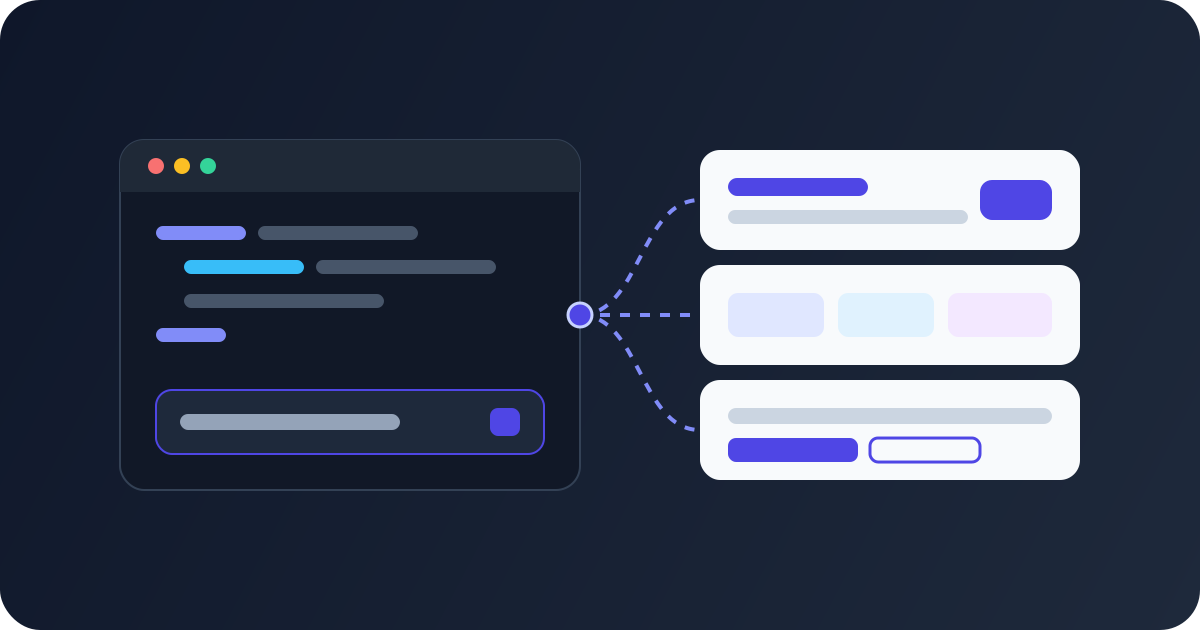
Ask an AI editor for "a Quasar pricing section" and you usually get something that looks right and isn't: a prop that was renamed two releases ago, a class Quasar never had, a layout that falls apart on a phone. This post explains why that happens and how to fix it with an MCP server, so that Cursor, Claude Code, VS Code Copilot, Windsurf and other clients paste real Quasar Components instead of guessing.
What MCP is, in plain words
MCP (Model Context Protocol) is a standard way for an AI client to call tools that live outside the model. A server lists its tools, such as "search components" or "get component", and the client calls them when a request needs them. The answer goes back into the conversation as plain text.
Without MCP the model can only use what it remembered from training. With MCP it can look things up while it works.
Why AI editors guess at Quasar markup
A model learns Quasar from the code and docs it saw during training. That causes three problems:
- Old versions. It mixes Quasar 1 and Quasar 2 APIs, and it doesn't know about props added after its training cutoff.
- Made-up classes. Quasar has
q-pa-mdandcol-md-6, but noq-pa-md-xlorjustify-md-end. Those names look plausible, so models write them. - No design to start from. Asked for a hero or a sign-in form, the model invents one from scratch every time, and you spend the next hour fixing spacing and dark mode.
An MCP server fixes this by handing the model real source to copy, instead of a memory to rebuild.
What the QuasarUI MCP Server gives your editor
The QuasarUI MCP Server lets your AI client browse the same Quasar Components you see on the site and fetch their source. Each Component is a single Vue file built with Quasar 2 and <script setup>.
It has five tools:
| Tool | What it does |
|---|---|
list_blocks | Lists every Block with its Component counts |
list_components | Lists the Components in a Block, each marked free or paid |
search_components | Finds Components by what they are, such as "login form" or "sidebar" |
get_component | Returns a Component's source |
get_setup_guide | Explains how to set up a project and paste a Component |
Search understands everyday names. "Pricing table" finds pricing sections, "login" finds sign-in forms, "modal" finds dialogs, "toast" finds notifications, "navbar" finds app bars and "sidebar" finds drawers.
get_setup_guide covers the setup for Quasar CLI, Nuxt and a plain Vite app, plus the two icon sets the Components use (Material Icons and MDI v7). Your editor can read it before it pastes the first Component.
Free Components need no key
You don't need an account to start. Without a key, the MCP Server returns the source of every Free Component.
Paid Components need All Access or Blocks Pro. Without one, asking for a Paid Component returns its preview link and how to unlock it, never its code. Your editor can still find Paid Components in search and in Block lists, where each one is marked paid.
To get Paid Components through the MCP Server, you connect with an Access Key:
- Sign in with the account that holds All Access or Blocks Pro.
- On your dashboard, under Access Keys, name the key (for example "Work laptop") and choose Create key.
- Copy the key, or the ready-made setup for your client. The key is shown only once.
Only accounts with All Access or Blocks Pro can create keys. Use one key per device or client, so you can revoke one without touching the others.
Connect your editor
The setups below are the same ones the MCP Server docs show. Start with the free setup. You can add a key later.
Free Components only
claude mcp add --transport http quasarui https://www.quasarui.com/mcp{
"mcpServers": {
"quasarui": {
"command": "npx",
"args": [
"-y",
"mcp-remote",
"https://www.quasarui.com/mcp"
]
}
}
}{
"mcpServers": {
"quasarui": {
"url": "https://www.quasarui.com/mcp"
}
}
}With an Access Key
Replace YOUR_ACCESS_KEY with your key. The dashboard gives you these snippets with the key already filled in.
claude mcp add --transport http quasarui https://www.quasarui.com/mcp --header "Authorization: Bearer YOUR_ACCESS_KEY"{
"mcpServers": {
"quasarui": {
"command": "npx",
"args": [
"-y",
"mcp-remote",
"https://www.quasarui.com/mcp",
"--header",
"Authorization:${QUASARUI_AUTHORIZATION}"
],
"env": {
"QUASARUI_AUTHORIZATION": "Bearer YOUR_ACCESS_KEY"
}
}
}
}{
"mcpServers": {
"quasarui": {
"url": "https://www.quasarui.com/mcp",
"headers": {
"Authorization": "Bearer YOUR_ACCESS_KEY"
}
}
}
}VS Code Copilot, Windsurf and other clients
The docs give ready-made setups for Claude Code, Claude Desktop and Cursor only. Other clients can still connect, because the MCP Server is a plain HTTP endpoint:
- If your client can connect to a remote MCP server by URL, give it the same URL as the Cursor setup above. To unlock Paid Components, also send the same
Authorization: Bearerheader. Check your client's MCP docs for where its config file lives and what its keys are called. - If your client can only start local commands, use the
mcp-remotecommand from the Claude Desktop setup.
Clients that only connect through OAuth, such as connectors on claude.ai, are not supported yet.
Prompts to try
Once your client is connected, ask in plain words. A few that work well:
- "Find a QuasarUI pricing table with a monthly and yearly toggle and add it to
pages/pricing.vue." - "List the QuasarUI Blocks for forms, then show me which sign-in forms are Free."
- "Get
hero-section-01from QuasarUI, save it ascomponents/HeroSection.vueand change the copy to describe my app." - "Read the QuasarUI setup guide and check that my
nuxt.confighas the icon sets the Components need." - "Search QuasarUI for a confirmation modal and adapt it to ask before deleting a project."
Naming QuasarUI in the prompt helps. Without it, some editors write the component themselves instead of calling a tool.
If your editor asks for a Paid Component without access, it gets the preview link and where to unlock it instead of the source. That's expected: it isn't an error.
Add Quasar's own docs server too
The QuasarUI MCP Server gives your editor Components. It doesn't answer "what props does q-select take in my version?". For that, Quasar has an official MCP server, @quasar/mcp. It serves the documentation and component API of the exact Quasar version installed in your project, offline. It needs Quasar UI 2.33 or later, and @quasar/app-vite 3.9 or later if your project uses it.
In Claude Code:
claude mcp add quasar -- npx -y --fetch-retries=0 @quasar/mcp@latestOn native Windows (not WSL), Quasar's docs start it through the command shell instead:
claude mcp add quasar -- cmd /c npx -y --fetch-retries=0 @quasar/mcp@latestFor Cursor, Windsurf, VS Code and other clients, Quasar's AI Agents page has the JSON to add and where each client keeps it.
The two work well together. Your editor fetches a Component from QuasarUI, then checks any prop it wants to change against get_api from Quasar's server.
Limits worth knowing
- Each IP address can make 60 requests a minute, and so can each Access Key. Past that the server answers 429 for a short while.
- A wrong, revoked or malformed key gets 401. The server never falls back to Free Components for a bad key, so a typo shows up straight away.
- Access is checked on every call. If a key is revoked in the dashboard, it stops working at once.
One more thing about Themeable Components: their source reads the CSS variables that the Theme Builder exports. Pasted alone, it won't look themed. Export your theme's quasar-theme.css from the Theme Builder too. The MCP output doesn't say whether a Component is Themeable, so check for the Themeable tag on its Block page. The custom Quasar theme guide covers the export.
Get started
Add the free setup to your editor and ask it for a Component. When you want every Paid Component in your editor too, get All Access and create an Access Key from your dashboard.